Discovered after ~10 years
If I have dot files, I’m gonna go all grey beard and handle them in a terminal.
Dragging and dropping files from the finder into an file selector window (ie. Open File in most programs) will navigate to that file and select it. As others mentioned this works in terminal as well to give you a path, but actually this generally works in any text box (unless it specifically handles paths being drag ‘n dropped). This also works with multiple files / multi file selection, and in the case of inserting the path as text, they are space delimited and auto quoted (convenient for shell use).
Edit: This icon can include the one at the top of a finder window (the window title). That’s actually interactable and can be dragged and dropped for the directory itself.
I'll add that if you want the path of a file and the destination application doesn't support drag 'n' drop, right click on a file in finder, then hold the Option key and you'll see the copy command changes from "Copy" to "Copy as Pathname".
You can also drag a file or folder's icon from a Finder window title bar.
When it doesn't work, that's a good indication of a program that's using Electron, Carbon, some old framework, or poorly maintained.
Adobe and Audacity are both guilty of this.
Hit it once, start dragging, then hit it again to bring back your apps to drop into.
So now I realize for years I’ve been using this silent feature of macs for years called “not totally jacked up font rendering”. I would never have imagined this was a feature, but apparently there is a collective insanity in windowsland where the quality of font rendering is not just a total and utter failure. So this is my new top Mac feature.
Some people, myself included, prefer how Windows render fonts. Others prefer MacOS.
From what I recall the last time this came up on HN, MacOS tries to render true to the font as if in a professional work flow that ends with a physical product. Windows aims for on screen legibility as it's primary goal.
Also remember that most Windows machines have a much lower DPI screen that what comes with or is hooked up to a Mac, so what is being optimized for there is also different.
Honestly hooked up to my large 1440p screen, MacOS's font rendering isn't /that/ nice, it becomes a wash vs Windows, and on a 1080p laptop I'll take Windows don't rendering.
It was interesting because I realized how subtly difficult font rendering is. Unless you’re using a monospaced font all of the characters have different widths, you have to figure out how to split text into lines, or how much to space text if the alignment is set to justify. In some of the fancier fonts on macOS, the characters actually change slightly if there are other characters nearby.
They turned off subpixel anti-aliasing and it looks worse on older displays.
(I can't help but think of the "slowing down older iphones" thing)
search for "fix blurry fonts mojave"
- While a menu is open, hold Option; if you're lucky, you'll get some additional options. This works after right-clicking an item in Finder, for example, or after right-clicking an icon in the Dock.
- Magnet for window management. This is a third-party application, but you'll wonder how you lived without it. If you've used Spectacle, Magnet is similar, but I find Magnet to be a bit more graceful.
- Sidecar and AirPlay. Want a second screen? Got an iPad or Apple TV? You can effortless treat it as a second screen with very low latency. It "just works."
- Cmd + Space to open Spotlight. Most power users are already familiar with this; if you're not, try it.
- Cmd + Shift + G in Finder to go to a folder by path. You can also use it to copy the path to the current folder.
- Return/Enter to rename the currently-selected file in Finder. If you're coming from Windows/Linux and are accustomed to pressing F2, you might not know about this one.
- Similarly, to open the currently selected item in Finder, press Cmd + O. To navigate up a directory, press Cmd + Up.
- Ever installed a new drive in your Mac? You don't need to manually download macOS installation media beforehand; with the right key combination at boot, you can install it via the internet. There are a few different related combinations with differing functionality; it's worth looking them up and choosing the right one for your situation: https://support.apple.com/en-us/HT201255
Cmd-Down also opens in Finder, just like Cmd-O
If you're using a Macbook with a Touch bar, you can press Cmd + Shift + 4 to enter a screenshot selection mode, and then use Touch bar to adjust screenshot mode (full screen, window or selection) and destination (Desktop, Clipboard, Preview, Documents etc) on the fly.
cmd + ctrl + o to open another tab in Finder in the same folder that's current open. In my opinion this should be the default for cmd + t, which opens a new tab but in your home folder.
For the app icons in the top right, clicking while Option is pressed also shows different menus. For example, the wifi icon now has options for diagnostics or the battery icon has a battery quality indicator.
- you can drag that file anywhere to move it.
- CMD click it to see a breadcrumb menu showing where it is and navigate to the folder
on a similar vein, dragging a file into an open file modal box makes it browse to the containing folder. In windows, dragging a file would move the file into that folder.
I combine the above two quite a bit. Editing a file in app A, need to upload it somewhere via browser. Drag file from title bar into open dialog box, done.
This behaviour seems to come 'for free', so, when it breaks, I can only assume that it's intentionally broken. One of the many ways that Adobe Acrobat violates the design language on macOS is by making this somehow not work. (They also break print to PDF–I guess because otherwise you wouldn't pay for the PDF creation capabilities—and do their absolute best to make sure you don't access the native print settings, which is fun because Adobe's own print settings don't play well with the printer accounting software at $WORK).
Similarly you can right click the window title (click with two fingers on the touchpad) for this functionality. It's very useful to navigating up in the folder hierarchy in Finder without adding any new icons to the toolbar.
I knew about this feature but it took me about a year or two of using macOS every day and the feature only working about 50% of the time before I understood how to get it to work reliably.
For those, like me, who were having problems: You have to click and hold the mouse button over the window, then hold the mouse there for a short period of time (e.g. half a second), then drag. If you drag too quickly it'll move the window instead.
For example, you can create a smart folder that contains all PDF files matching a certain name pattern within a given directory (or the whole disk) [0]. You can get really advanced, there's a ton of different parameters you can use [1], and you can even create more complicated conditions by holding Option and clicking the plus sign (now changed to just three dots). And of course you can drag these folders into the sidebar's Favourites section.
I would LOVE them if they were reimplemented as a fuse style file system instead of a userland macOS trick.
Finder: Cmd+Shift+G to navigate wherever I want (with autocomplete)
Text input: Control+Command+Space for the emoji list and search
Text input (switching keyboards for Japanese input): Control+Space for quick toggles
Text input (accents in my native language): all the accents and letters of various European languages are usually made by using Option+[key] for the accent, and Option+[key]+letter for the proper letter. The [key] maps are e -> ´, `` -> `` (I'm messing up the rendering of the quotes here despite my best efforts), i -> ˆ, u -> ¨ and some keys Option+[key] directly give a character when it's unique, such as Option+a=å and Option+o=ø, and Option+1=¡ (because it's the key for ! otherwise, which makes sense - and can help with Spanish)
For the longer examples, Option+e+e = é, Option+e+a = á, Option+`+a = à, Option+u+u = ü, Option+i+u = û, Option+n+n = ñ, etc.
Holding Option in menus also shows extra options and their shortcuts (although this is less and less the case outside of the Apple apps themselves). An example using Finder -> Edit and pressing/releasing the Option key[1]
Oh and one more: the app "Stickies", which allows you to have "post-it notes" with color coding and collapsing the note by double-clicking on the title, saving to file, etc. I use it to take quick notes or set casual reminders.
Last but not least, not an Apple app but a very helpful tool I've used to make the gif in this post: Kap is incredibly convenient to records bits of the screen and save to various formats, and it's been improving a lot since its early releases[2] (I have no stake in this, I'm just thankful for such a cool piece of free software)
[0] https://support.apple.com/en-us/HT204609
Nowadays, holding down a key will show a pop-up with all the accent options, which you can then select by mouse or by typing the number under it, much like on iOS. The option route is my preferred one, as it's faster, but the new one is much more accessible to people without keyboard prowess.
Thank you so much for telling us about it, but I expected that I can drag the window anywhere. Turns out I can only drag it where it could also be dragged by clicking normally.
But I turned it on anyway, we'll see if I'll use it.
Also, what do you use for backups?
Thank you.
cmd + shift + a = applications directory
cmd + shift + d = desktop directory
Semi-related, type `open .` in terminal to open that directory in Finder
Type whatever you want.
Cmd-b
Your default web browser with your default search engine will now open and perform your query. I can't stress this enough how much I use this workflow when writing code.
Another thing for the OPs issue with the screenshots, (there's a few steps via terminal so maybe try the above shortcut to search for an article on how to do it) you can have all your screenshots redirect to a folder.
For example all of my screenshots end up in $HOME/screenshots
Also, another cool and sometimes useful shortcut, holding option while clicking is a big thing in osx. Try click the wifi icon in the top right corner whilst holding the option key. It will give you a bunch more details :)
Especially drag-n-drop. I'm not sure if it's already mentioned, but the proxy icon (the icon in the title bar) is super-useful in situations when you need to find (e.g. upload/attach the file in Safari, opening the file with another app) the file somewhere else. Just drag the proxy icon and drop it to the destination, and it usually will do what you want.
Also the Touch Bar. Everybody complains about it while not even trying to take advantage of it...[1] Customize your Touch Bar so that the buttons are in a consistent way, e.g. I always put the new tab button (if it exists) in the far right, where I can reach without looking, and I put the most useful actions (like getting information, trashing files in Finder, tab switching in Safari, text suggestion, etc...) in the middle, and put the less-useful but somewhat frequent actions (like toggling the sidebar, emojis, etc..) in the left. If you consciously try using them for a week or two, you realize you're much productive using the Touch Bar than using obscure shortcuts or moving the mouse.
[0]: BTW, good news for people who were complaining - macOS Big Sur greatly increases the amount of controls reachable with the keyboard, although I dislike the fact that I have to bang more tabs to reach some button.
[1]: There's definitely Apple's fault here too, if you're using a Touch Bar equipped Mac, 'brew cask install haptickey' so that you get haptic feedback on your Touch Bar touches.
My ideal setup would be to make the trackpad a tad smaller, add the physical function keys again and the touch bar above.
I don't think it was a good tradeoff for many use cases.
An excellent example I discovered only the other day: in Finder, press spacebar to speed up drag-and-drop spring-loading. (It finally makes spring-loading USEFUL!)
Everything explained and shown here:
https://www.youtube.com/watch?v=w1izlhicjvQ&t=67
E.g. move file into a folder in another Finder tab, now made quick via this action.
- Hold down the option key while resizing a windows (with the mouse) to also resize the opposite side. This also works when resizing the window on a corner to resize all edges at once.
- Double click a window border to enlarge this side of the window up to the edge of the scereen. Hold down the option key to enlarge also the opposite site.
- Double-click the title bar of a window to maximize it
It's the first app I install on any fresh box.
On my personal computer I use Better Touch Tools.
My 1 year old taught me that one.
EDIT: Updated with the actual default command.
I think this may not be the default; it doesn't work for me.
While speaking of the character picker, does anyone know a way to get less broken search in the picker? For example, I frequently find myself looking for math italic characters in Unicode. Despite the description being, say, "MATHEMATICAL ITALIC SMALL A", it doesn't come up when I search for 'small'. In this case searching for 'mathematical' or 'italic' works, but there are other cases where I just have to guess search terms randomly (or go look up Unicode tables elsewhere).
There are a LOT more sets of characters available in the picker, hit the gear menu in the upper left and select "Customize List".
For decades I assumed that there’s some weird fluky behavior when trying to select a word and accidentally selecting the paragraph.
opt + [arrow keys]: To move through text respecting word boundaries.
cmd + [arrow keys]: To move through text respecting line boundaries.
Add shift to either of those and now instead of navigating, you're selecting the text.
opt + delete: deletes full word behind cursor
cmd + delete: deletes full line behind cursor
Windows, Android, all browsers I use, inside apps, etc
- Get Info on file. - Check Stationary Pad box.
If you open the file from within the application itself (I tested with Pages) or via an external app (Terminal, LaunchBar, etc) then it opens the original.
[1] https://osxdaily.com/2015/05/28/batch-rename-files-mac-os-x-...
You can then navigate by arrow keys or typing. Space bar activates the highlighted menu/submenu.
It makes life so much better.
Control-F2 itself was slightly broken in 10.14 (IIRC), so I hacked up a dumb workaround in my Hammerspoon config:
https://github.com/NateEag/dotfiles/blob/99f6b641151f85f6f78...
Also, Command-K to clear out a terminal window (also often works in similar places, such as the MAMP error log viewer).
https://www.omnigroup.com/more
I'm a big fan of the Omni group, and run my life on omnifocus
This is especially useful for pranking your loved ones for whom you have remote shell access. ssh in and cause the other person’s computer to start talking to them... by name... asking for help... to be let out of the small metal box they’ve been trapped in for SO long...
This has been available in Mac OS for at least 15 years, and probably longer.
./some-lengthy-job | say Done
I still use this as a kitchen timer all the time when cooking while on my Macbook with utimer, which is basically a count-down timer for the shell (available via brew install utimer), e.g.
utimer -c 10m | say Pasta is doneYou can still recreate the title card voices in macOS.
say -v Whisper "Weird: Layer zero one"If you create a "Developer" folder in your ~ it's gonna have a different icon and is canonical place to put all your code in mac world.
Clicking wifi tray icon while holding option is going to give you a lot more info and some hidden tools.
Same for the Bluetooth icon: you can see for example your BT audio codec used, signal levels, MAC addresses and other info.
The sad thing is there’s no good reason for the slider to ignore your input during the animation. I think Apple just didn’t care enough to test it thoroughly. They only tested the Touch Bar with computer newbies who press every key slowly.
My daughter enabled it while I wasn't at the computer and then thought my keyboard had died. Even took it in to get repaired, and got a new keyboard.
There is no permanent indicator that it's enabled, and it persists after reboots (once logged in)... when I figured out my brand new keyboard still had several broken keys I started looking for S/W level issues. Hard facepalm. It didn't help diagnosis that I did have some physically affected keys too.
At least I got a new keyboard out of it...
I think it was either persistent, or he only sleep/woke his computer and never tried rebooting it.
Looking at my keyboard shortcuts it's cmd-alt-ctrl-8, and it is presently disabled.
I use this all the time when I either have something handy in Finder or can find it more quickly with alfred.
defaults write -g NSWindowShouldDragOnGesture yes
When you save it the changes will be on the command line.
I imagine this was added recently.
Increase Contrast, which I prefer not just for aesthetic reasons (it gives a slightly old-school feel to the interface), but because it delineates areas of windows / apps more clearly: Preferences > Accessibility > Display > Increase Contrast. This will automatically turn on Reduce Transparency, but I used that setting anyway, to reduce distracting detail.
Others already mentioned:
- three-finger drag is indispensable. Anytime I touch someone else's laptop I turn it on and blow their minds
- hold Cmd in Spotlight to reavel the path containing the selected item, Cmd + Enter opens that folder in Finder.
- readline keys work in basically every text input on the machine. Want to delete a line? C-a C-k. Delete the word preceding the cursor? M-Backspace.
- Cmd + Down opens the selected item in finder, Cmd + Up jumps one level up the folder hierarchy Cmd + Left/Right expand/collapse
Worth noting: Chrome actually no longer dies when you fat-finger cmd-w. It shows a "hold cmd-q to quit" overlay and only dies if you keep holding the keys down.
1. Press Command-Tab to show your running apps. Keep holding Command.
2. Press Tab until you've selected the minimized app.
3. Press the Option key, and let go of the Command key. You must release the Command key after pressing the Option key! The minimized app is now unminimized.
Note that this only works for an app with all of its windows minimized. If there is already a visible window of the app you won't be able to get to the minimized one with this trick.
I posted it once to Super User where it’s still getting attention after 9 years: https://superuser.com/questions/196141/keyboard-shortcut-to-...
And
Command + Option + Shift + Click
Works on most default OS things you can click on. Reveals a whole new set of amazing functionality.
Example: Doing so on the bluetooth icon on your menu bar, gives you the debug option for you to reset / restart bluetooth module.
To do that use Handbrake, whick is open source and the go-to app for any encoding.
i sometimes compose quick-and-dirty UX flows from mockups this way.
It's part of the Accessibility > Speech menu in Settings.
I wrote up a little info doc for how to enable keyboard shortcut for it so you can use with any text you can select: https://docs.google.com/document/d/1mApa60zJA8rgEm6T6GF0yIem...
Use cases: - read blog posts and news articles while doing dishes (basically turn anything into an podcast at the press of a button) - read hacker news comments - proofreading text (you can hear the typos much easier than you can see them in a text you have written)
I haven't tested it much yet but the 'Samantha' voice actually seems listenable and intelligible for long periods.
using option will duplicate
using cmd will move
So the default for dragging on the same disk is move. option+drag will make a copy.
The default for dragging to a different disk is copy. cmd+drag will move instead.
I have thought Macs were pretty cool since I first used system 7. But I would not apply such blinders. This thread could also be taken as criticism even if nobody intends it to be so.
I only recently discovered the Youtube channel 'MacMost':
https://www.youtube.com/user/macmostvideo
As a long-time macOS user, I am astounded at the things I'm currently learning from this guy, they're not just 'cool' things, they're seriously productivity-boosting things! They're small but sometimes impactful.
This is the best tip I can give anyone here.
Not builtin on macOS but iTerm2 is a must (together with oh-my-ZSH it's been a game changer)
The "time machine" on apps has been useful as well, rolling back to a previous version of a doc is great.
Some "unexpected feature" I found the other day. I accidentally dropped my MBP (and it seems it is engineered to close itself on drops but I knew that already ahem so it fell shut and upside down) and it started making a siren-like noise, as I began to get worried, I opened the screen and it was showing only glitches and it restarted (well sh1t). But then it restarted just fine and crisis averted.
At some point in the last 8 years, Apple changed the animation for how a window becomes full screen. The default behavior is to expand while simultaneously shifting the window to the right, or conversely expand while the desktop shifts to the left.
Enabling "Reduce Motion" eliminates that behavior, and the full screen window fades in and out instead, which personally I prefer.
Useful when you like to leave apps "open" even with all their windows closed (ie. not using Cmd-Q), but still want to use Cmd-Tab to get to the app instead having to click something.
sudo nvram StartupMute=%00
sudo nvram StartupMute=%01Very handy i. e. for project management (Kanban…)
Instead of releasing cmd to switch to the application, you can press q to quit it.
https://taoofmac.com/space/til/2020/06/11/1915 (has animated GIF explainer)
- If you need to make a quick screen recording video, open QuickTime Player. There’s an option to record the screen in the menu.
- (This one’s been extremely useful to me, and hardly anyone seems to know about it!) — If you need to provide tech support to another macOS user, open iMessage on your Mac, and start a conversation with the other person’s Apple ID. Click the dropdown caret beside their name in the recipient list, and click “Ask to share screen”. A VNC request will be sent straight to their Mac (with built-in microphone audio, so you can chat to them), plus options to control their computer remotely.
It's a tiling window manager. If you've used tmux, i3 or awesomewm you'll feel right at home.
⌘O – open file/folder in Finder
⌘J in Finder, Set as Defaults — sets default view options for all folders (struggled a lot with Finder inconsistencies before finding this out)
Hold down OPTION to vertically select text (works in the terminal at least)
CMD + SHIFT + . in Finder to show/hide hidden files
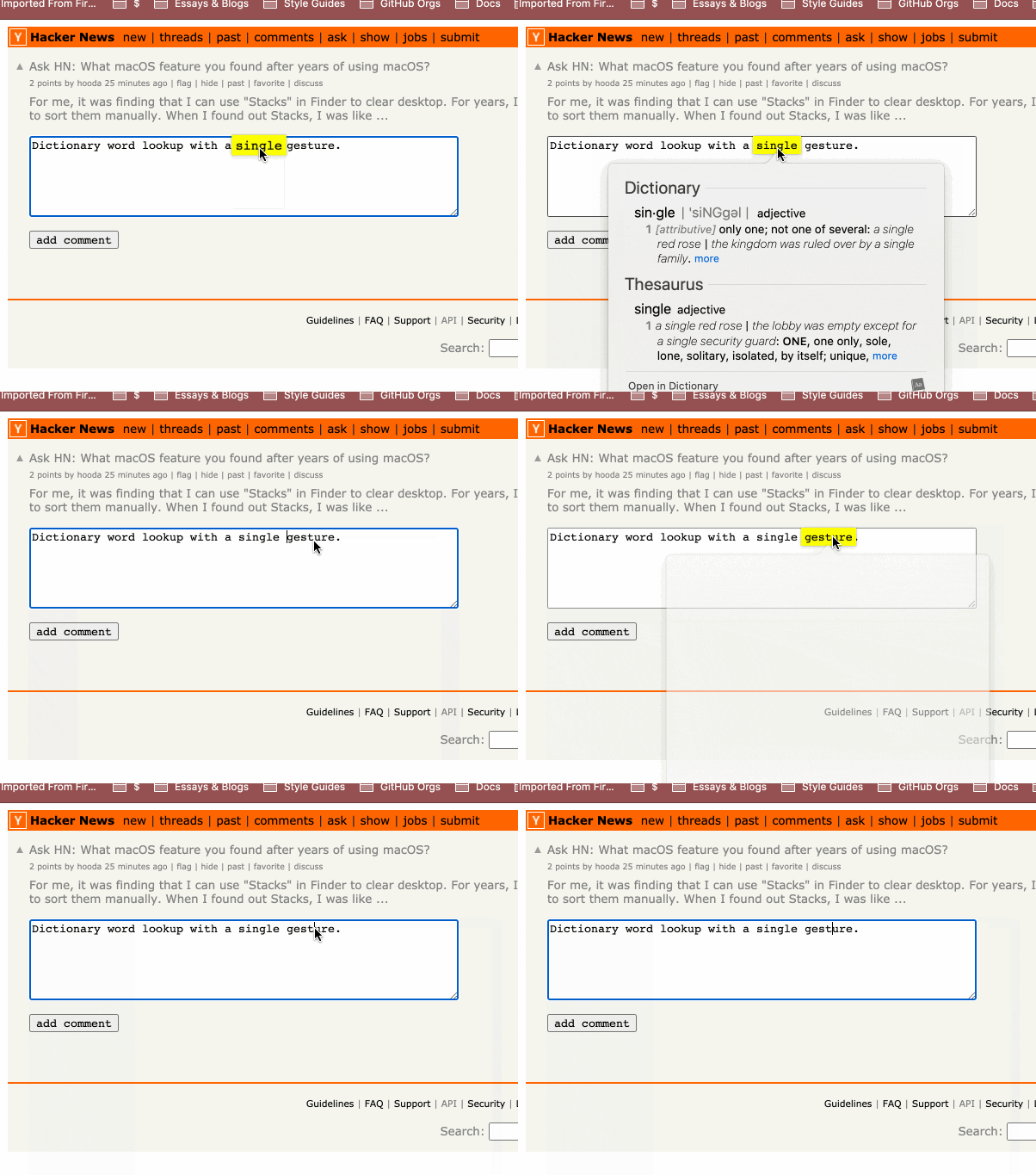
CMD + CTRL + D on a selected word to open the dictionary
I'll sometimes use the `say` command to let me know when a long-running command on the terminal finishes (e.g., `say Done`)
Ability to remap the Caps Lock key to Control
Shift+control+command+4 = screen capture to clipboard
defaults write NSGlobalDomain KeyRepeat -int 5
Somehow it took me 12 years of using macOS to learn how to maximize windows.
https://apple.stackexchange.com/questions/297417/how-to-decr...
While I was in Brazilian jujitsu class they had an MMA brand that needed "organic content" based on articles from wikipedia and I bartered with them so that I would receive a Jujitsu Gi for summarizing 150 articles. This allowed me to accomplish the above task in only a few hours.
Also, show files / packages on Logic Pro projects which are packed as a file.
So you press "Ctrl" and then scroll down on the trackpad and it will zoom in anywhere/on anything. Use it quite often and love it :)
2. Accessibility > Pointer Control > Trackpad options > Enable dragging > Without dragg lock
This one takes some time getting used to but it's awesome once you get the hang of it
3. Control–Shift–Power button
To put the display to sleep
Press CMD + Shift + / to open a search over all Menubar-actions for the current app.
If you're used to action-search in IntelliJ or VSCode, this will feel familiar to you. It's for those countless features that you use often, but not often enough to remember their proper shortcuts.
There are Launchbar- and Alfred plugins that provide a nicer interface.
(Germans need to reconfigure the shortcut in the settings, because our keyboards are weird)
In the terminal you can use pbcopy and pbpaste to use your clipboard: cat my.txt | pbcopy.
In the terminal you can use the open command to open a file or a folder in finder: open . and open foo.pdf.
Double tap the window frame to maximize it correctly (not to a new screen and not just on one axis but the way Windows maximize works).
Multiple virtual desktops and swiping between them with gestures.
  #!/bin/bash
  # Sets the title of the Terminal Window / Tab.
  # title foo => Sets the title of the Terminal Window / Tab to foo.
echo -n -e "\033]0;$1\007"Suffice to say I had to change my MAC address every week to fight their shitty system.
Go to [System Preferences > Mission Control > Hot Corners] and when you make your selection just press the modifier you'd like to use.
I've always found hot corners too easily triggered, for me this strikes the right balance.
Hold Shift + Option and click on the Bluetooth icon in the menu bar.
Doesn't work for groups (last time I tried at least), and hideously undiscoverable.
Cycles between the windows of the same app. Similar to cmd + tab.
Saved me so much when reading multiple pdfs in preview
eg, Option-click the menubar wifi icon and you get all the details of your wifi connection including BSSID of the router you're actually connected to, RSSI, your assigned IP, etc.
You get a new PDF with the pages you copied.
defaults write http://com.apple.dock persistent-apps -array-add '{tile-data={}; tile-type="spacer-tile";}'
Very useful for organizing icons.
And this works also within other apps like spark where I can use the space bar to quickly verify what attachements are present.
Don’t think windows does this.
Also, damn you Microsoft for using non-standard views in your macOS apps.
Command-arrow to move to the beginning or end of the line
Combine either of these with the shift key to quickly select text.
CTRL + K (delete to end of line)
CTRL + D (delete in place aka delete key (not backspace))
CTRL + A (go to start of line)
CTRL + E (go to end of line)
as an alternative to 3 finger swipe, to move across multiple desktop spaces. Especially helpful when when you have multiple editors and layouts
does anyone know how to turn off wifi on startup via scripting?
This makes servers running on the mac unreliable (sometimes it's not listening to the net) and adds interference to other devices.
Then "File"->"New From Clipboard" in Preview to be able to save it as a file.
If a web site doesn't have a PiP button, press and hold the speaker icon.